You know the feeling—your character lags a split second behind your input, your timing feels off, and every move in-game feels just a little… sluggish.
If you’re here, you’re fed up with that disconnect. You want your inputs to feel instant and your actions to sync perfectly with what you see on screen. Whether you’re grinding in a high-stakes ranked match or just looking for smoother gameplay, that delay between pressing a button and seeing a response is killing your experience.
This guide is designed to help you reduce input lag—not with vague suggestions, but with focused, tested strategies that actually work.
We’ve spent years running performance tests across dozens of gaming setups, tuning everything from GPU settings to monitor configurations. What you’ll find here is a step-by-step process that combines key software tweaks, hardware adjustments, and in-game optimizations.
No fluff, just everything you need to make your gameplay tighter, faster, and more responsive—and finally feel one-to-one with your game.
Understanding Input Lag: The Unseen Enemy of Gamers
Let’s start with the basics because this stuff gets confusing fast.
Input lag is the delay between pressing a button and seeing the result on screen. It’s not the same as network latency, a.k.a. ping (that’s the delay between your device and the game server), and it’s definitely not display response time, which is how fast your screen’s pixels change color.
Here’s the chain of delay:
YOU press a button → it travels through your peripheral (controller, keyboard) → into the operating system → processed by your CPU/GPU → sent to the display. Every link slows things down.
Pop quiz: Ever missed a parry in Street Fighter 6 even though you swear your timing was perfect? That could be input lag (not just you hitting buttons late after too many espressos).
So, how do you reduce input lag?
- USE A WIRED CONNECTION. Wireless = more delay.
- ENABLE GAME MODE ON YOUR DISPLAY. Seriously, it’s not just marketing fluff.
- TURN OFF VSYNC. It adds delay, especially in fast-paced games.
- CALIBRATE YOUR CONTROLS. (Start here: how to calibrate your game controller for peak performance)
- UPGRADE TO A LOW-LATENCY MONITOR. Look for 1ms response time or less.
Pro Tip: High FPS lowers perceived input lag. Aim for 60 FPS minimum—120+ if you’re serious.
Software & Settings: The Free Performance Boosts
Let’s be honest—hardware upgrades are pricey. But squeezing out better performance with zero cost? Now we’re talking. Optimizing your software and settings can lead to boosts that feel shockingly close to hardware-level improvements.
V-Sync: ON vs OFF
Turning V-Sync OFF is often the single biggest improvement you can make for competitive games. While it was designed to eliminate screen tearing, the trade-off is higher input latency—your actions feel delayed. Competitive players nearly always prefer it OFF. Why? Because when milliseconds matter, delayed inputs = lost fights. (Pro tip: Pair this with a manual frame cap to avoid runaway frame rates.)
Exclusive Fullscreen vs Borderless Windowed
Exclusive Fullscreen gives your game total control over the display, resulting in smoother frame delivery and lower latency. Borderless Windowed, on the other hand, makes task switching feel seamless—but adds a small performance cost. If you’re prioritizing frames and responsiveness, Exclusive Fullscreen is the better pick every time. (Unless you’re live-streaming and need that quick alt-tab.)
Frame Rate Limiters: Why They Matter
Avoid maxing out your GPU unnecessarily by setting an in-game frame limiter just below your monitor’s refresh rate (e.g., 141 FPS for a 144Hz monitor). This lowers input lag, reduces system strain, and creates a more consistent experience. Trust us—your aim will feel cleaner.
OS-Level Tweaks: Game Mode & Power Plans
Windows’ Game Mode shuts down background interruptions. Combined with switching to High Performance or Ultimate Performance power plans, you unlock more CPU and GPU headroom. Minor changes, major impact. Oh, and keep your GPU drivers updated—many updates include tweaks that directly reduce input lag.
NVIDIA Reflex vs AMD Anti-Lag
This one’s simple: enable them. NVIDIA Reflex and AMD Anti-Lag are platform-level optimizations that reduce system latency dramatically in supported games. Think of them as turbo buttons for responsiveness. If your game lists one, toggle it ON and don’t look back.
In a world chasing next-gen everything, sometimes the quietest settings offer the loudest wins.
Hardware That Matters: Investing in a Low-Latency Ecosystem
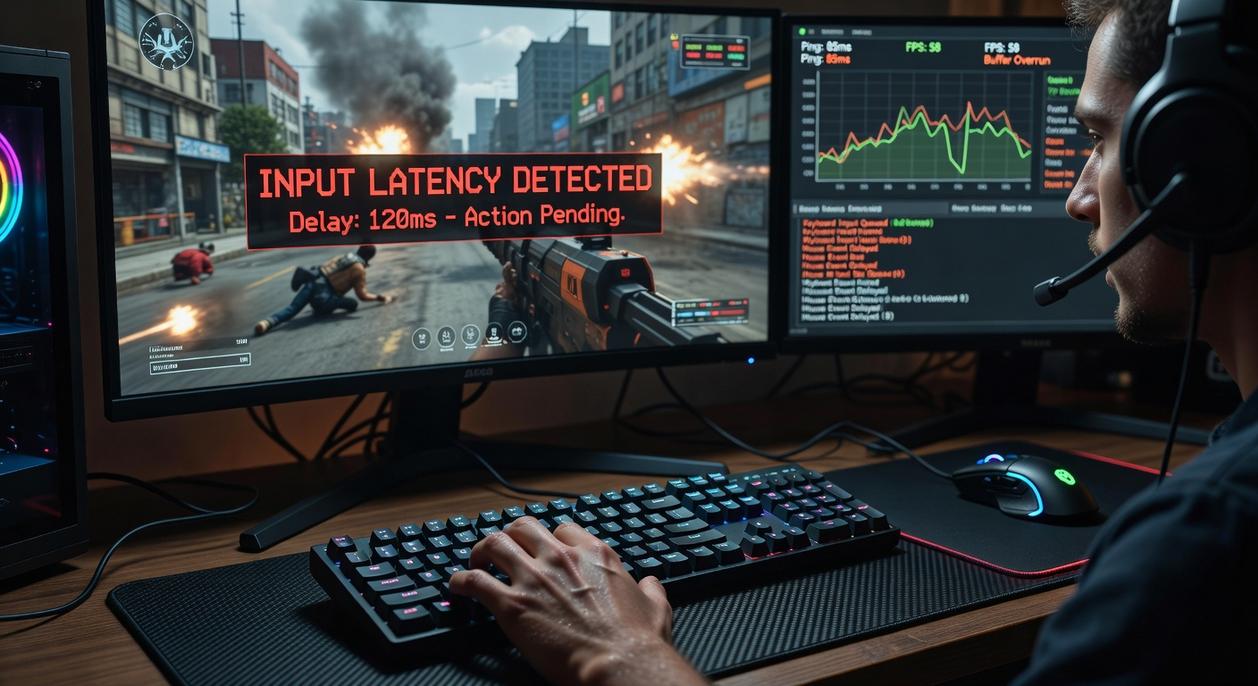
Let’s get something straight: lag isn’t just annoying—it’s the silent killer of performance. Whether you’re climbing the ranks in competitive shooters or grinding for frames in your favorite MMO, every millisecond counts. That’s why the right hardware isn’t optional—it’s essential.
Some argue that skill alone outweighs gear, and while there’s truth in that (a great player with bad gear can still outplay an average one), there’s no denying that outdated or poorly optimized hardware puts you at a disadvantage. Here’s what actually makes a difference:
1. Your Monitor Is Mission-Critical
Forget the 60Hz panel gathering dust on your desk. Competitive gamers have largely moved to 144Hz or even 240Hz monitors with a 1ms GtG (gray-to-gray) response time. Why? Lower input lag and smoother visuals. The GtG time defines how quickly pixels change colors—slower transitions cause ghosting and blur.
Pro tip: Look for built-in “Game Mode” or “Low Latency Mode” settings. These bypass extra image processing (which looks nice but slows things down), giving you real-time responsiveness.
2. Wired vs. Wireless Peripherals: The Lag Myth
The old wisdom said: wired = fast, wireless = delayed. But that’s, frankly, outdated. Modern 2.4GHz wireless tech—as seen in Logitech’s LIGHTSPEED or Razer’s HyperSpeed—delivers latency so low it’s indistinguishable from wired setups.
However, Bluetooth is still a no-go for competitive play. It’s not built for speed and introduces variability in latency (your mouse missing a flick could cost a match).
3. Understand Polling Rate
Polling rate is how often a device reports its position to your PC, measured in Hz. For mice and controllers, 1000Hz+ is the new standard. This equals one report every millisecond—vital for quick reactions in FPS and fighting games.
4. Processing Power Isn’t Just About FPS
A fast CPU and GPU don’t just render prettier frames—they shorten key parts of the input chain, like game logic and render time, helping to reduce input lag. A weaker system? It might still show 60 FPS but delays your actual commands.
In short, if you want to reduce input lag, your ecosystem matters. Every piece counts—because in today’s latency-sensitive meta, hardware isn’t an accessory. It’s an advantage.
Testing and Measurement: How to Know You’re Making a Difference
So you’ve updated your setup and tweaked your settings—now what? It’s easy to think you’re playing better, but how do you know for sure?
Let’s break it down.
Built-in diagnostic tools are your best friend here. Games and hardware like NVIDIA Reflex Latency Analyzer provide real-time latency stats. They measure the time between a mouse click and the in-game response—no guesswork involved.
But what if you don’t have fancy tools?
Try the old-school yet surprisingly effective feel test. Here’s how:
- Change one setting at a time (like V-Sync or frame caps).
- Use a familiar game where you know the gameplay timing.
- Play a few rounds and see if it literally “feels” snappier.
(Pro tip: make notes—you’d be surprised how fast your memory gets fuzzy.)
One big myth? Internet speed tests. They tell you nothing about local input delay. You’re testing bandwidth, not gameplay responsiveness. If you’re trying to reduce input lag, those online tests won’t help.
The bottom line: trust data when possible, feel when necessary, and stay skeptical of misleading shortcuts.
Achieving a Truly Responsive Gaming Experience
Lag kills more than just your score—it kills the experience. That delay between your button press and the on-screen response isn’t just annoying; it can ruin your competitive edge and pull you out of the game.
You came here looking for answers, and now you have them. Throughout this guide, you’ve unlocked every tool you need to diagnose, optimize, and finally eliminate the input lag that’s been holding you back.
The difference between casual and competitive gameplay often comes down to timing—and timing means having a setup that responds the instant you react.
Want that edge? Want gameplay that feels hard-wired to your instincts? Start today. Make the free in-game settings changes and tweaks we’ve laid out.
You’ll feel the impact—immediately.
Our recommendation: Don’t wait. reduce input lag now with the step-by-step fixes in this guide. Gamers everywhere trust these proven methods to reclaim their precision and elevate their play.
Ready to win again? Make those changes. Feel the difference. Play to your full potential.